
Big picture
A destination calendar mixes steady coverage with focused pushes. Restaurant week, holiday shopping downtown, or a new trail system each deserve a run of posts, not one mention. Multiple Posts is built for those pushes: describe the series, and Atlas plans and drafts each post around it, using your photos.
Three ways Atlas creates posts
- Calendar guidance. The default. Your interests, events, seasons, and the guidance you add come together into topics, and Atlas turns each topic into a post. This keeps the calendar full across the year.
- One post at a time. In Manual Mode you pick the photos and write the caption yourself. In AI Assisted mode you give Atlas an idea and it finds the photos and drafts the caption.
- Multiple Posts. A mix of both. You give Atlas direction for a set period, and it generates the whole series from that direction. Think of it as a small campaign with its own set of posts.
How it works in Atlas
Open Multiple Posts From the Upcoming Posts calendar, choose Create Posts, or selecting to add posts with the "+ Post" select the "Multiple Posts" option.
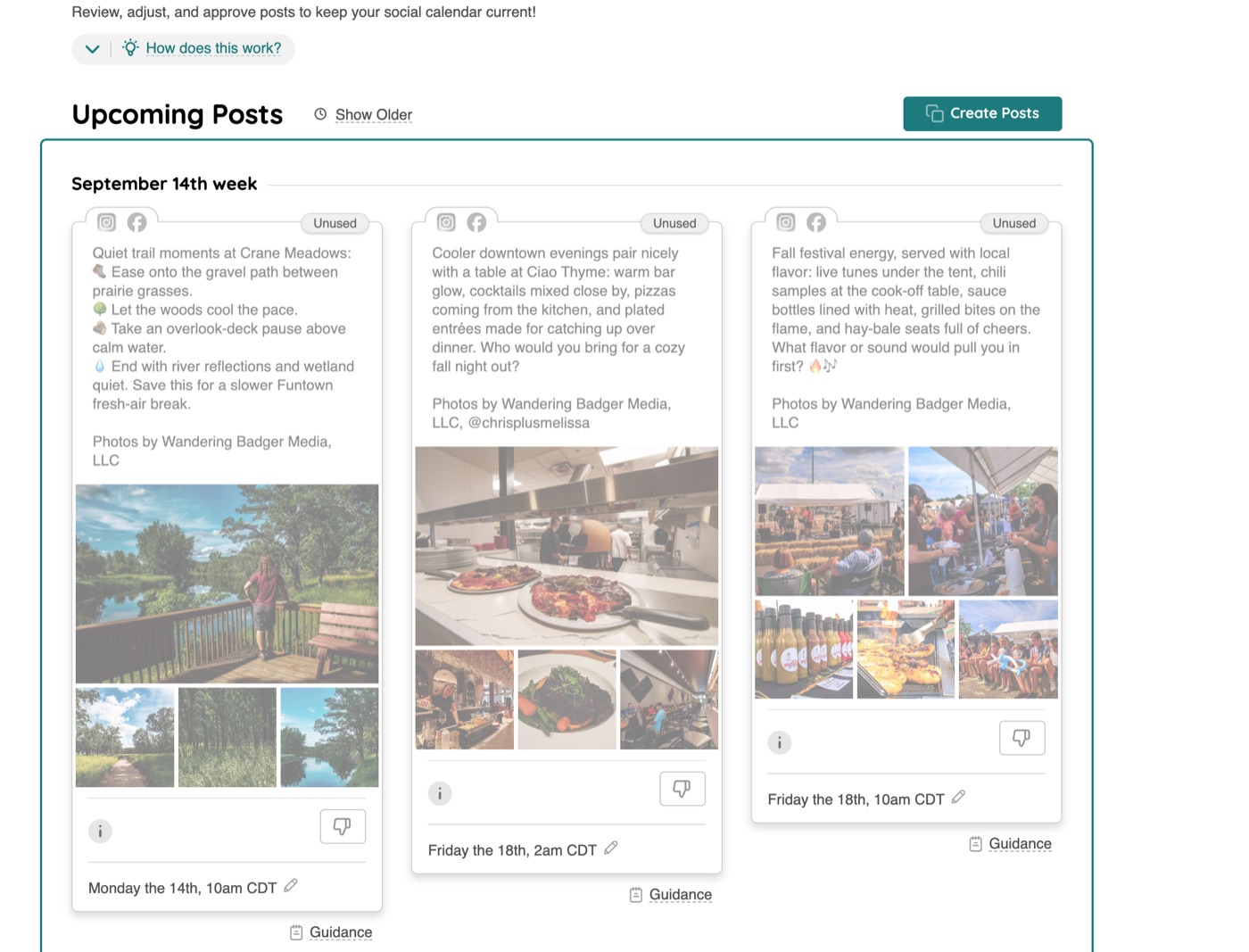
Create Posts sits at the top of the Upcoming Posts calendar. Describe the series. Give it a theme or goal, then describe what to post, how often, and for how long. The quick starts, like Food & Drink, Shop Local, Arts & Culture, and Outdoor Experiences, fill in a starting point you can edit. Set the start date, and either let Atlas match a content album or choose one yourself.
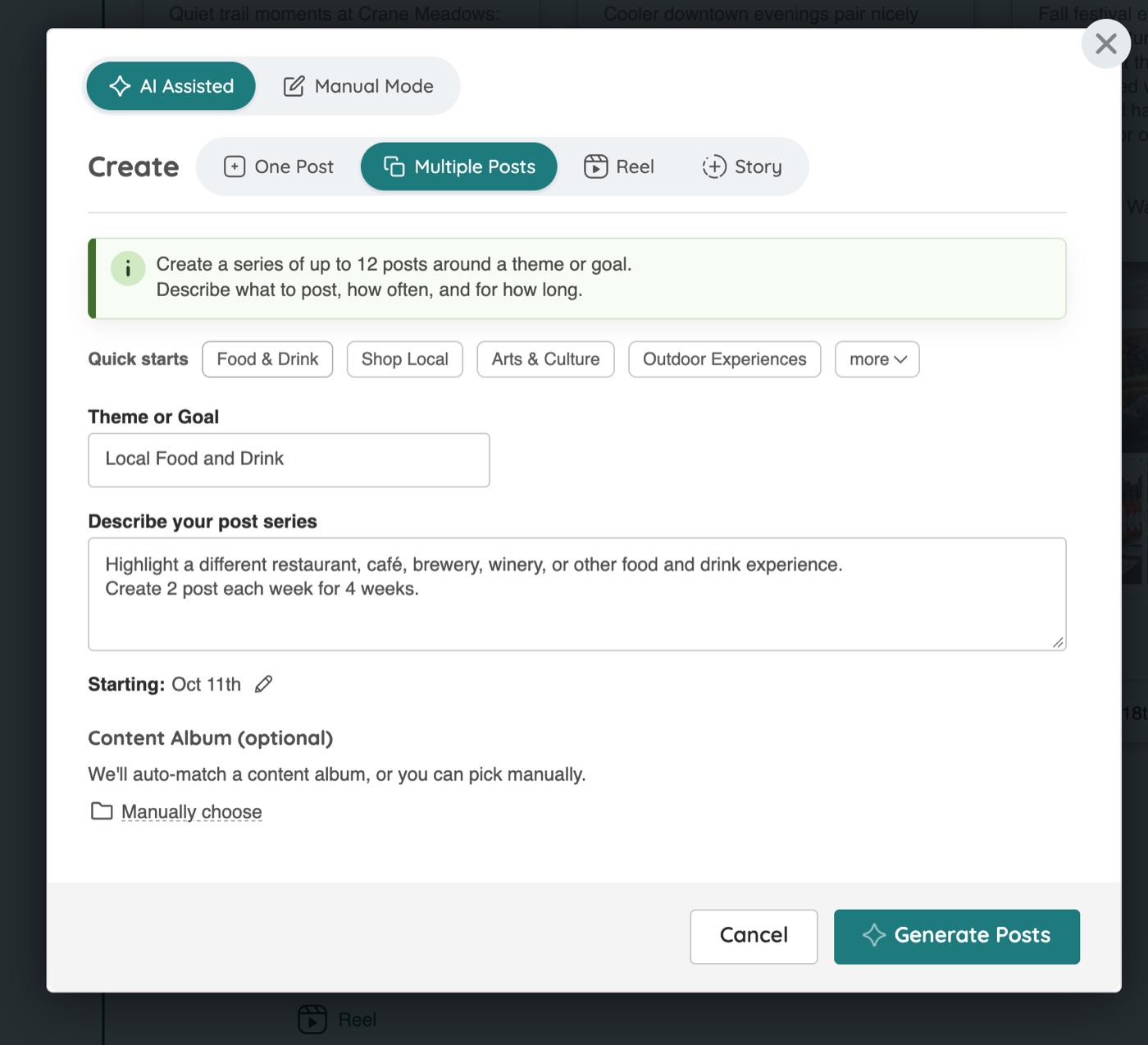
A theme, a description of what to post and how often, and a start date are all Atlas needs. Atlas drafts the posts. Each post in the series appears in its week on the calendar as a draft, with photos, a caption, and a scheduled time. Generating takes about 20 seconds per post, and you can watch them fill in.
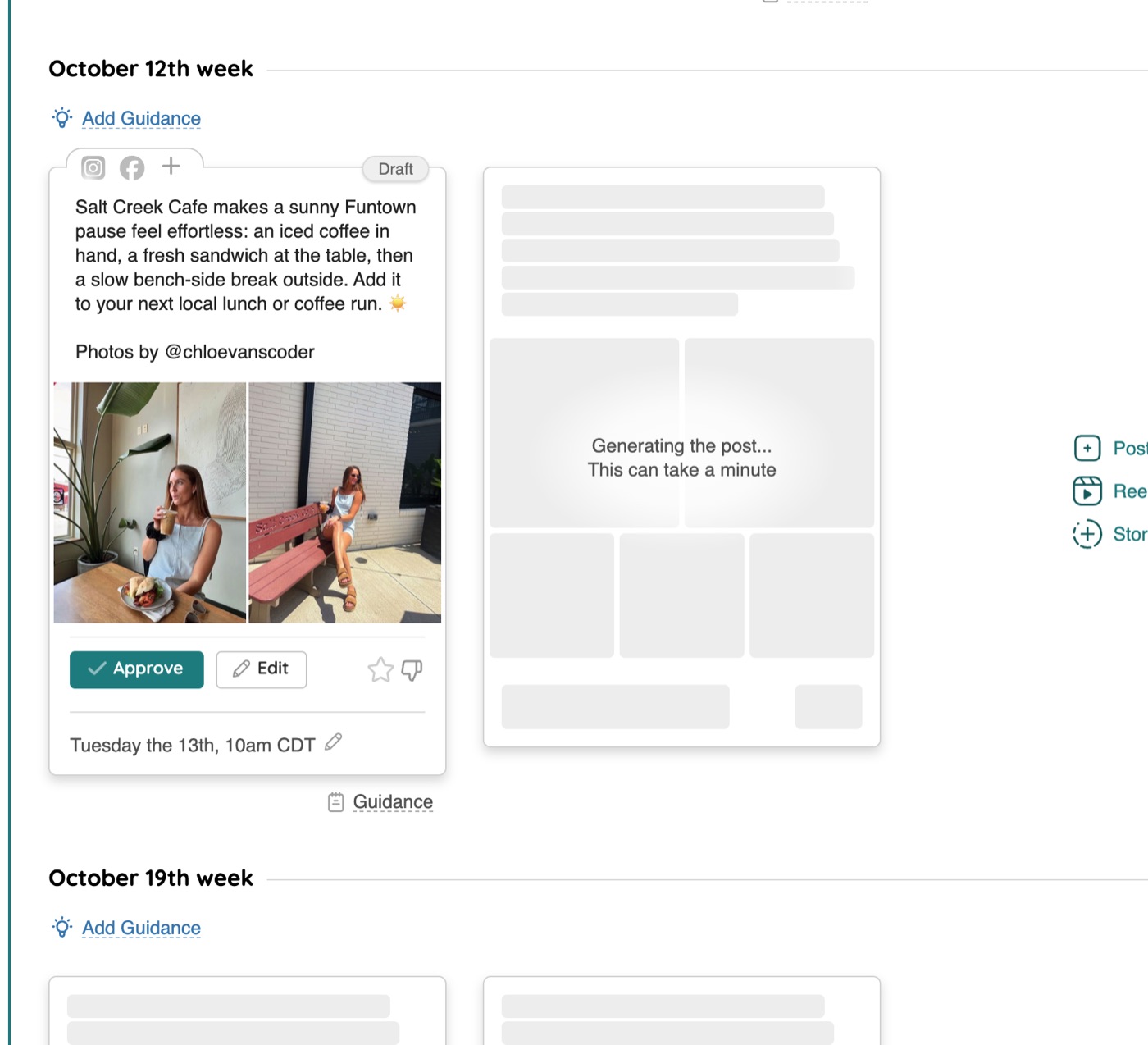
Drafts land in their scheduled weeks, ready to approve or edit. Review and approve. Each draft works like any other Atlas post. Approve it, edit the caption or photos, or change the date and time. Tags and mentions follow the same rules as other generated posts. Nothing publishes until you approve it.
Series ideas
The description works best when it says what to feature, how often, and for how long. A few examples you could type in as written:
- Restaurant Mondays. Highlight a local restaurant every Monday for the next 6 weeks.
- Local food and drink. Highlight a different restaurant, café, brewery, winery, or other food and drink experience. Create 2 posts each week for 4 weeks.
- Shop local for the holidays. Feature a different downtown shop twice a week from Thanksgiving through mid-December.
- Fall on the trails. One park, trail, or overlook each Friday through October.
Common questions
How many posts can one series include?
Up to 12. If a push needs more than that, create a second series that starts where the first one ends.
Do I have to choose a content album?
No. Atlas matches an album to your theme on its own. Choose one manually when the series should draw from a specific Creator Visit or upload, like the photos from last fall’s festival.
Where do the posts show up?
In Upcoming Posts, in the week each one is scheduled for, marked Draft. They sit in the same calendar as the posts Atlas plans from your regular guidance.
Can I change a post after it is generated?
Yes. Each draft works like any other Atlas post. Edit the caption or photos, adjust the tags and mentions, change the date and time, and approve it when it is ready. Nothing publishes until you approve it.
What content does Atlas use for the series?
Photos from your content library, matched to your theme. Generated posts use photos, not video.
How is this different from adding guidance to a week?
Guidance steers the posts Atlas already plans for that week. Multiple Posts adds a new set of posts built around your description. Use guidance to shape what is coming, and Multiple Posts to add a focused run.
Want to check how a series credits the businesses it features? See how tagging and mentions work in Atlas Social.
Questions about a series that did not come out the way you expected? Email us.